
Note that this app is new, so we welcome being alerted about any bugs and suggestions for improvement. Send your comments to membership@bhamjcc.org.
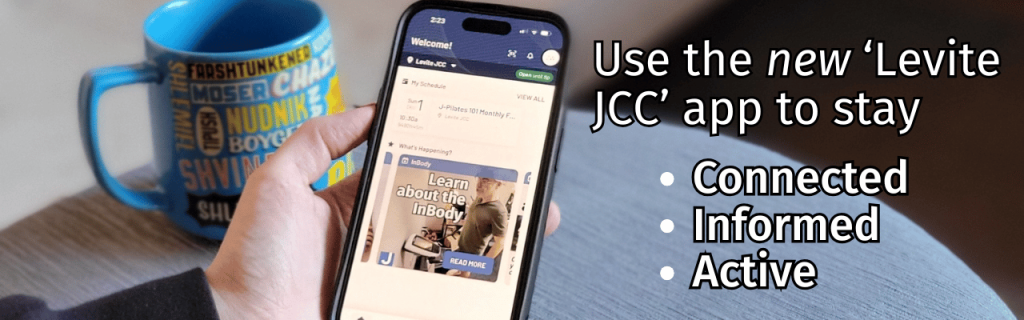
Download the new Levite JCC app for:
- Building hours and facility alerts (pool closings, power outages, etc.)
- Important announcements
- Generate a secure entry barcode
- Group fitness schedules
- General and holiday hours
- News about The J
- Easy program registration
- Program information
- Membership account management
Step 1: Download the app now
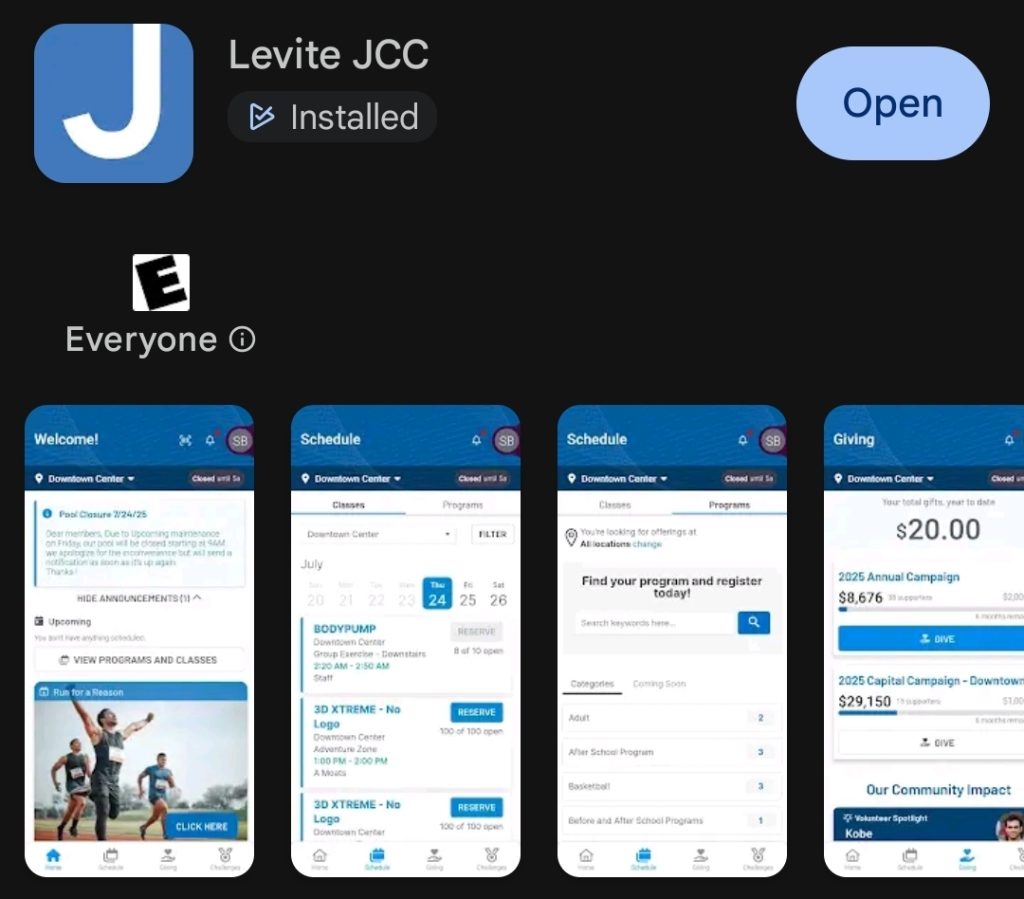
For iPhone (Apple App Store)
- Open the App Store on your iPhone.
- Type “Levite JCC” in the search bar.
- Look for the app with the Levite JCC logo.
- Tap “Download” (or the cloud icon).
For Android (Google Play Store)
- Open the Google Play Store on your device.
- Search for “Levite JCC.”
- Select the app with the Levite JCC logo.
- Tap “Install.”
Step 2: Open the app and log in
- Once the app is installed, tap “Open.”
- Log in using the same email address and password associated with your Levite JCC membership.
- If you are unsure which email is on your account, our front desk staff can help.
- If prompted, allow notifications so you can receive important updates and reminders.
Step 3: Explore key features
Generate a barcode to check in
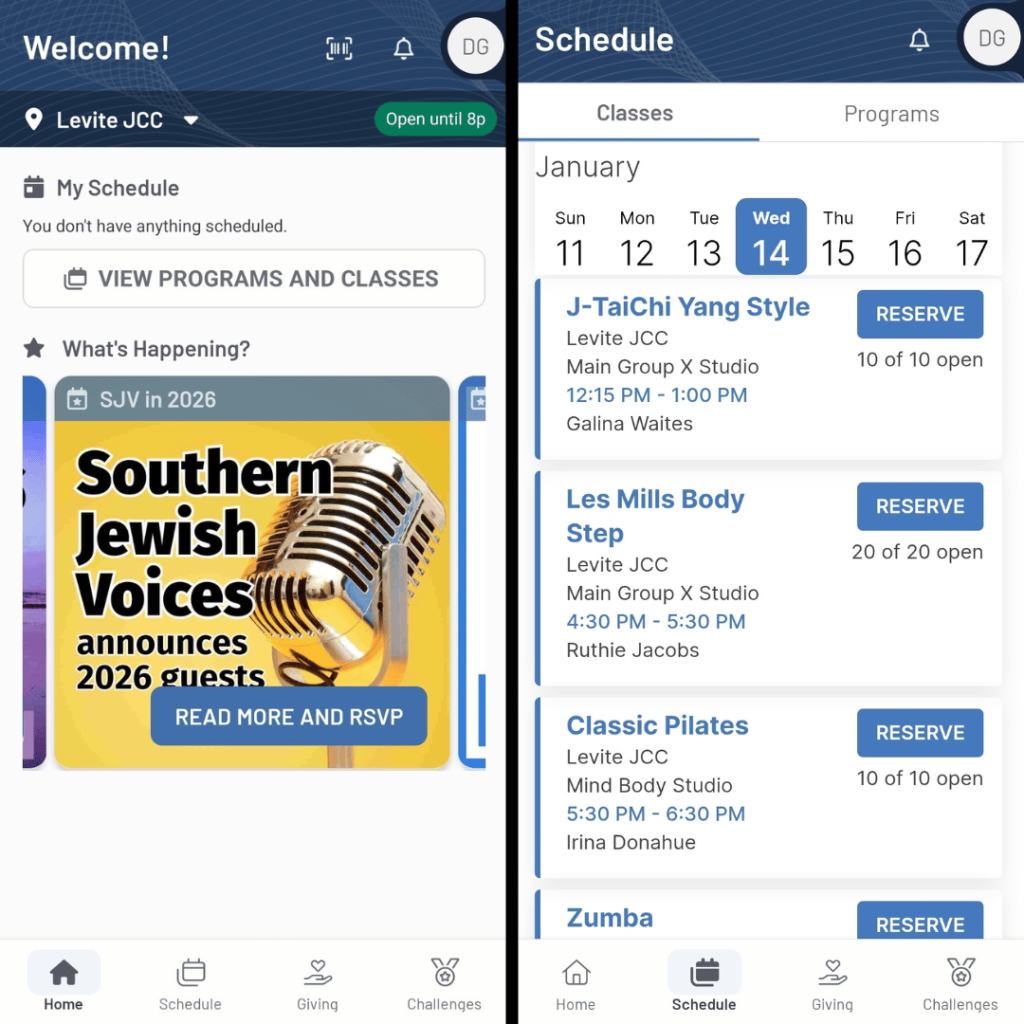
- Look for the barcode icon to the left of the bell at the top of your “Welcome” screen.
Fitness class schedules
- View real-time group exercise schedules.
- Reserve a spot in your favorite classes.
- See class descriptions, instructors, and times.
- Check for schedule changes or cancellations.
News and announcements
- Stay current on LJCC news, programs, and events.
- Receive alerts about facility updates, closures, or special hours.
Facility Information
- Find regular and holiday hours for the fitness floor, pool, and other amenities.
- Access important information all in one place.
Step 4: Customize your experience
- Turn notifications on or off based on your preferences.
- Check the app regularly for the most current information.
- Use the app as your go-to source for all information about The J.
Need help?
- Visit the Welcome Desk for in-person assistance.
- Our staff is happy to help you download the app or log in for the first time.